Create a Connection Profile Free Net For PC
This article will help you to create a connection profile in your GP Modem software. Some of the free internet trick requires creating connection profiles with specified access point name. And this article should work with other operators then GP as well.
Activate a Internet Package to use Free Internet on PC
If you dont have any active internet package then you wont be able to use free net tricks. So Activate any package if you didnt already. Some of the operator has
Pay as you Go. On those operators you can use Free Internet at 0 balance.
And following package code is only for GP. So other operator users should use their package activation code. - Go to SMS option. And click New Message icon.
- If you want fully free of cost internet then write P1 then send it to 5000.
- And If you want faster free net then activate any other package with sufficient validity.
- To activate Minipack 2 MB with 2 days validity at 2.88 BDT type 2MB and send SMS to 5000.
Create a new connection profile by GP Modem Software to use Free Net for PC
Important notes: Be careful when writing access point name while using other operator then
Grameenphone. They have different APN such as
Airtel and
Robis APN is
internet,
Banglalinks APN is
blweb.
- Plug in GP Modem to the Computer via USB.
- Open the software of your Grameenphone Internet Modem.
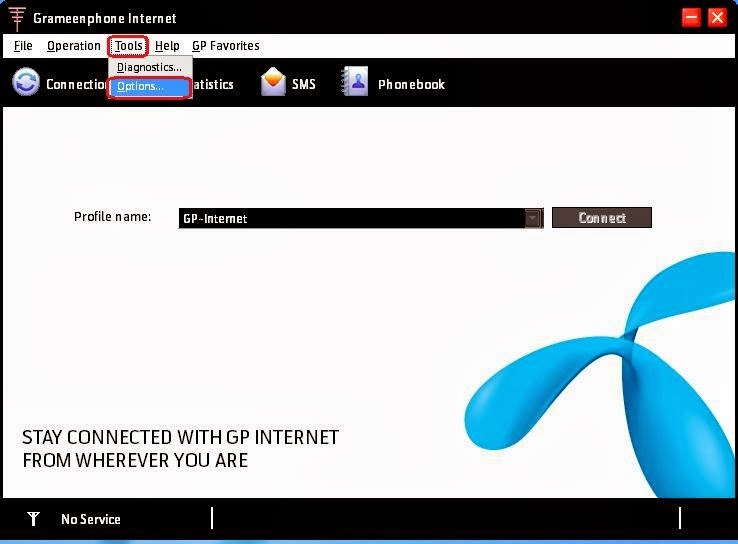
- Click Tools > Options Menu.
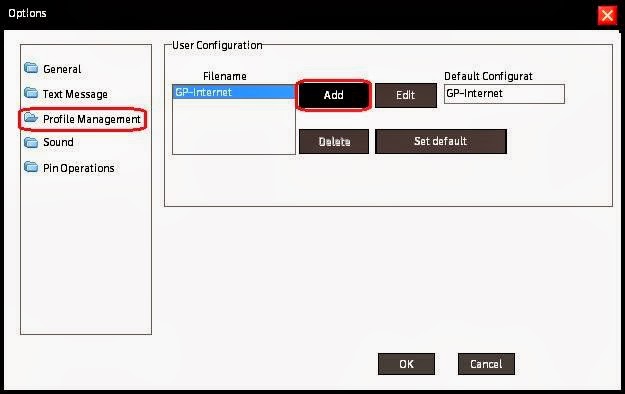
- Click Profile Management from the left side menus.
- Then Click Add Button.
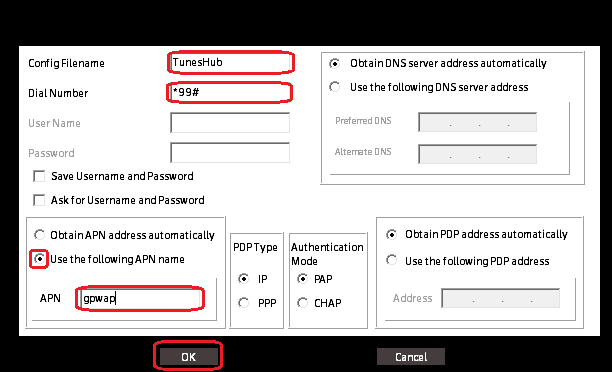
- Write "TunesHub" as Config Filename.
- Then write "*99#" as Dial Number.
- Select Use The Following APN name radio button.
- Write "gpwap" as APN if youre using GP. (And type internet for Robi and Airtel. blweb for Banglalink).
- Click OK button like screenshot given below
- Then click OK again to get back to the main window.
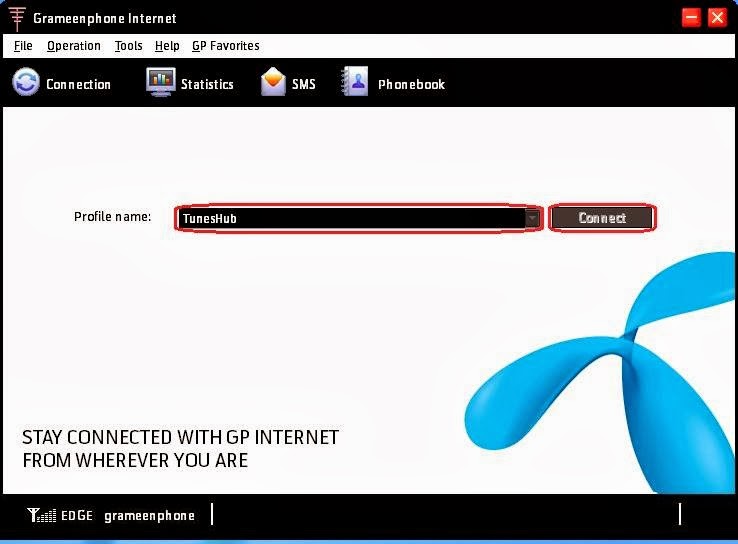
- Click on the drop down menu shown in below screenshot. And Select TunesHub (If TunesHub isnt showing in the list then Exit the Modem software and Open it again).
- Click Connect. Thats it!
Create Free Net Profile On Nokia PC Suite
- Connect your Nokia Phone to Computer via Bluetooth/ Data Cable/ Infrared.
- Open Nokia PC Suite and click Connect to the Internet or One Touch Access(OTA) icon.
- Click Configure icon. Then select the phone model.
- Click Configure the connection manually check box. Click Next Arrow Icon.
- Write "gpwap" in Access Point text area.
- Finally Click on the OK Icon. Thats All.
Remember one more thing the main condition to use free internet is keep 0 balance. Otherwise all of your balance will be deducted. So be careful. And try to turn off automatic Windows update and antivirus update etc. Youll need to turn off the java script of the browser to use Some trick with
GPWAP system.
visit link download


 Download APK


